Instance Overview
Instance Overview for Stack Console
The Instance Overview page provides a detailed summary and management options for your virtual machine (VM) instance. It includes information about the instance status, location, operating system, performance, and quick actions for managing the instance.
Action Buttons
- Action Buttons offer shortcuts for common VM management tasks.
- For quick actions, click on the three dots on the right side to open the actions menu. You can use these action buttons for quicker tasks.

- To view more Action buttons in detail, click on the instance, which will redirect you to the Virtual Machine Overview page.

- Refresh: Refreshes the instance status and page information.
- Power Off: Shuts down the virtual machine.
- Reboot: Restarts the instance.
- Delete: Deletes the instance permanently.
Instance Information

- Instance Name: Displays the name of the instance.
- Created on: Shows the creation date and time.
- Status: Indicates the current running status of the VM.
Instance Details
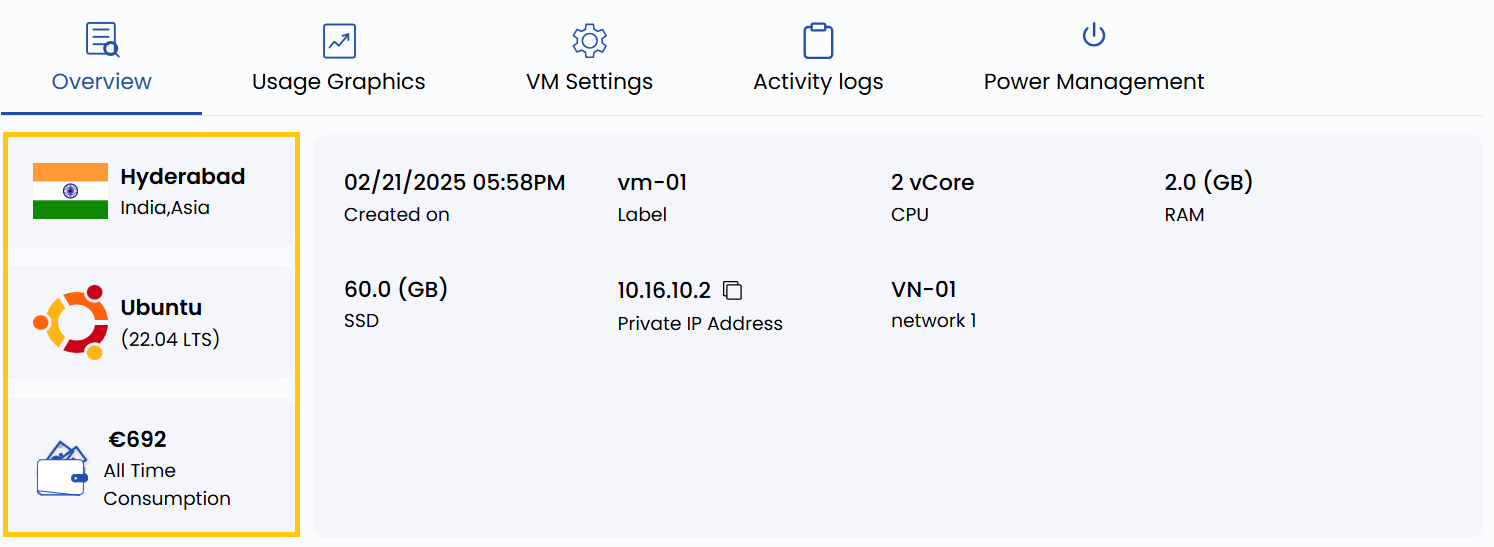
- Location: Indicates the datacenter location of the instance.
- Operating System: Displays the OS running on the VM.
- Cost: Shows the all-time consumption cost for the VM.
Resource Specifications
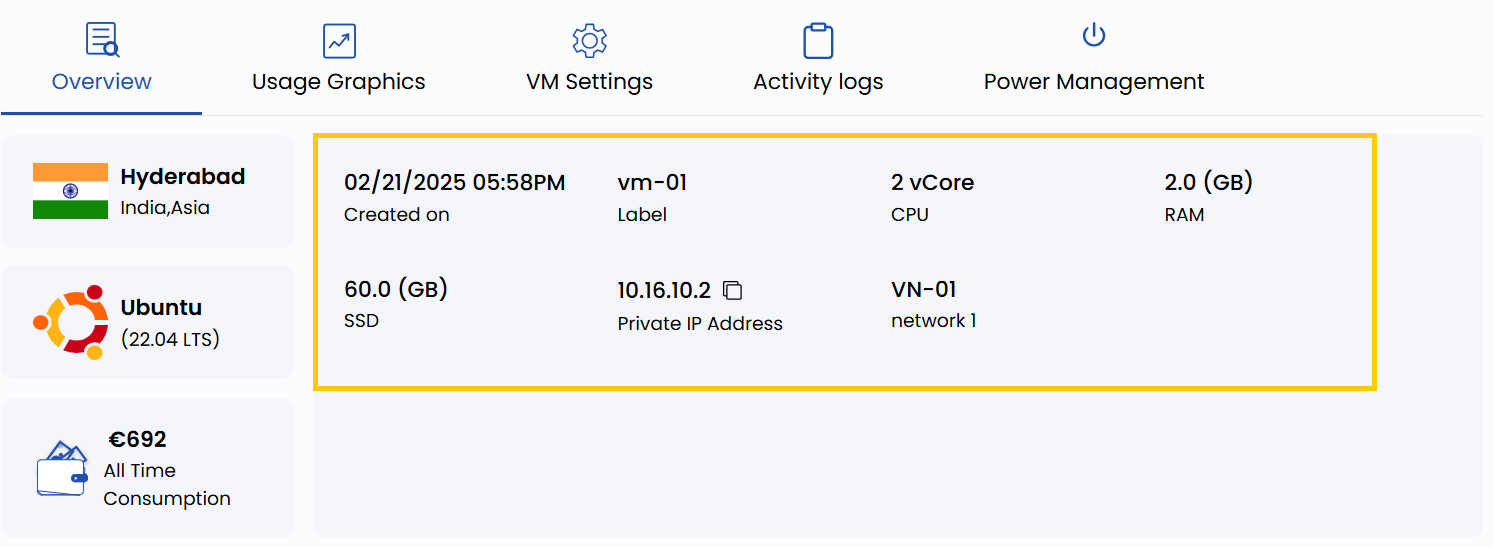
- Label: Custom label associated with the VM.
- CPU: Number of vCPUs allocated.
- RAM: Amount of memory available to the instance.
- SSD: Size of the storage disk.
- Private IP Address: The internal IP used in the network.
- Network: Displays the associated network.
Resource Usage
- Resource Usage helps monitor resource usage like CPU, RAM, disk, and network usage over time.

- Disk Size: Shows the disk usage capacity.
- Network Traffic: Provides metrics on network usage over a specified period (defaulted to the Last 24 Hours).
- CPU Usage: Shows the percentage of CPU resources currently being used.
- RAM Usage: Displays the amount of memory consumption by the instance.
Conclusion
The Instance Overview page provides a comprehensive yet straightforward view of the VM instance’s configuration and management options. Each action button allows quick control over the VM's status, while resource specifications help monitor the VM's performance and behavior. For further assistance, refer to the Stack Console documentation or reach out to support.
tip
See also: